Trying to set up your Android tablet as a feedback kiosk? Find out how to do so in this article.
There is a one off cost (per device) of $17.20 NZD
____________________________________________________________________
Install
1. Open the Google Play Store (Android app store)
2. Search for Kiosk Browser Lockdown (app developer is ProCo IT) and install the app.
App icon:
3. Click the open button from the Play store or open the app from the app list on the tablet
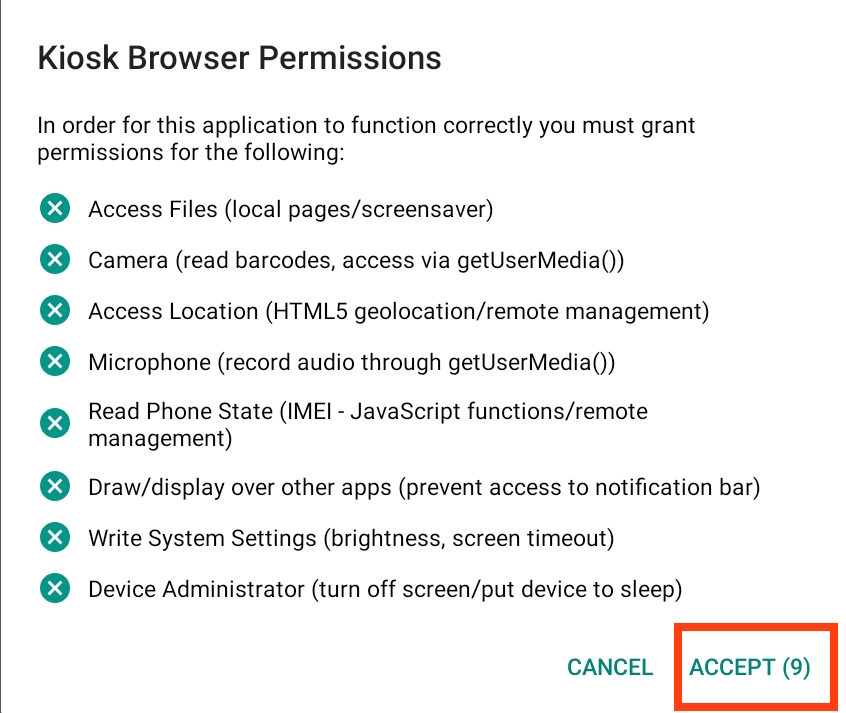
4. A window will appear asking you to add permissions for the app. You will need to allow all the permissions it is asking for. To do this, click ‘Accept’ and then ‘Allow’ or ‘Activate’ on any subsequent window.
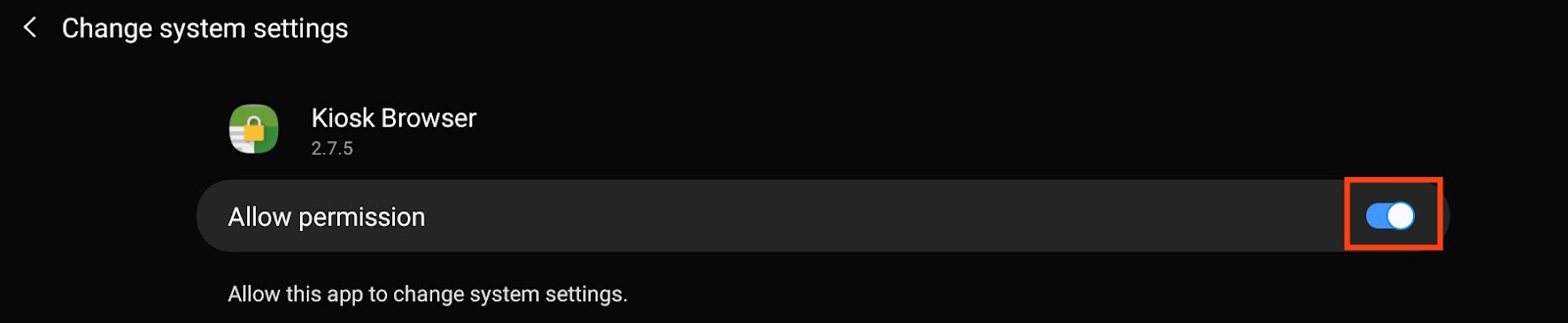
(in the image above, move the slider to the On position)
5. Once all permissions are allowed, the tablet will ask you to set a Home app. Select ‘Kiosk Browser’ and then click ‘Always’
6. The app will open and show a slideshow with its features. Click ‘Next’ until you get to the end and then click ‘Done’.
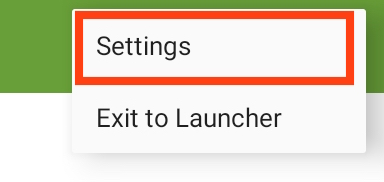
7. The app will then show you the Google home page in its browser. Click the three dots in the top right and click ‘Settings’.
8. Enter the default password 0000 (four zeros) and then click ‘OK’
9. You will now need to modify the settings as follows:
- General
- Kiosk URL - https://www.feedback.fyi/feedback/your feedback code
- Kiosk Title - company name Feedback
- Timeout (minutes) - scroll up on the window and click 20 Seconds
- Timeout: Always Reload - uncheck this box
- Display
- Theme - choose which colour the title bar should be
- Full Screen Mode - check this box
- Toolbar
- Forward Icon - uncheck this box
- Refresh Icon - check this box
- Whitelist/Blacklist
- Enable Whitelist - check this box
- Whitelisted URLS (comma separated) - click this and enter the following URLs exactly like this: customerradar.com,feedback.fyi,theterms.info
- Redirect to Home Page - check this box
- Advanced
- Resize page when keyboard covers input - check this box
- Admin
- Settings Password - Click into this and enter an easy password to remember. Write this down somewhere safe. (We recommend a 4 digit code that customers won’t be able to guess easily)
10. From the main Settings page, click ‘Get Licence’ at the top. Enter the licence key after purchasing from the website www.android-kiosk.com
11. Click the tablets home button and you will be taken to the feedback screen. It should now look like the following:
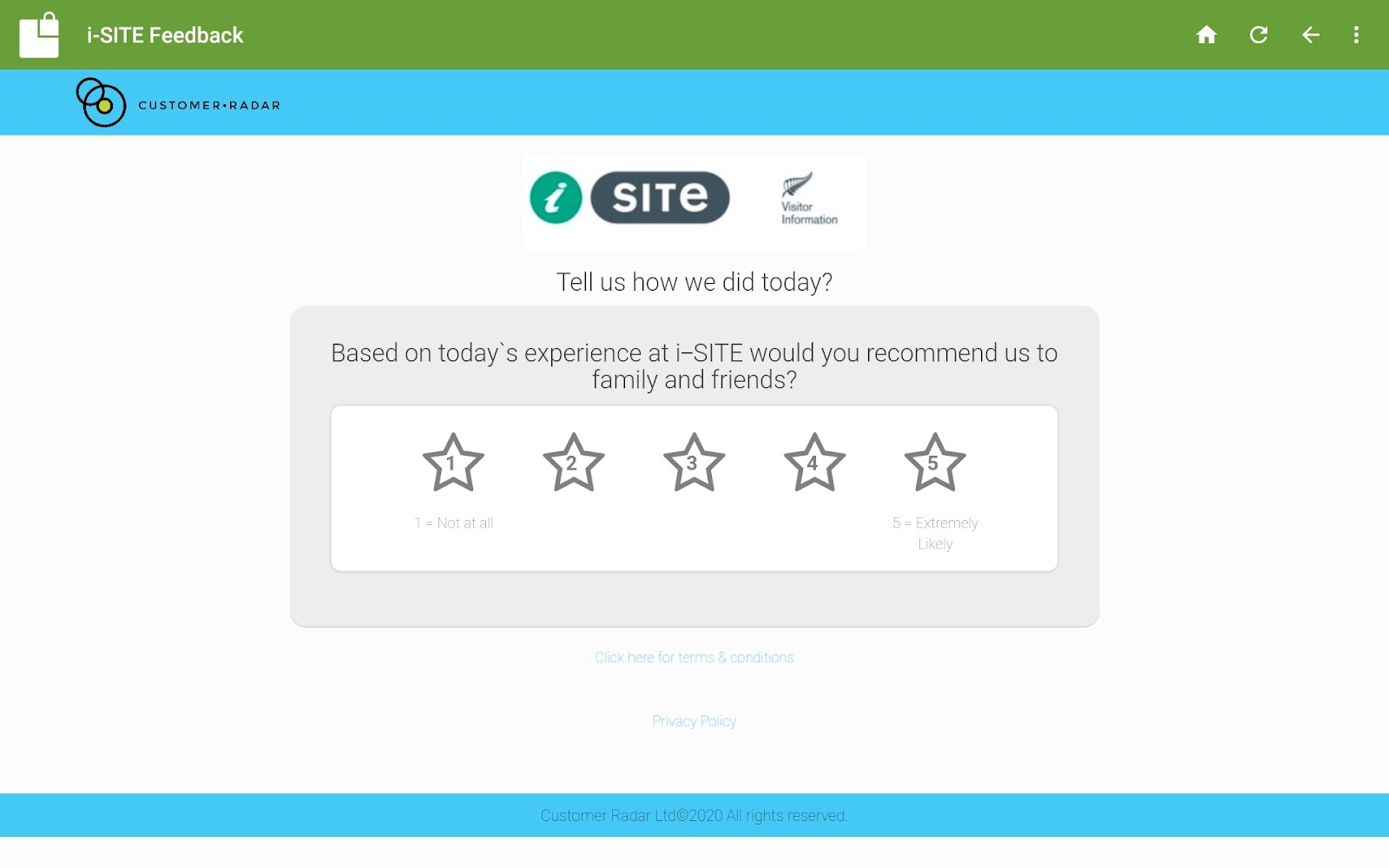
12. You can now test that it works correctly. Click a star rating, enter the comment ‘Testing tablet’, enter your email, then mobile, then for ‘How did you hear about us?’, enter ‘Test’.
13. When you click ‘Submit’ you will be taken to the ‘Thank you’ page. There is then a 20 second delay before it reloads back to the Feedback page. You can also reload by pressing the home icon or refresh icon. When the page reloads it removes all the details previously entered in.
14. The Android tablet is now set-up and ready to accept feedback. Place it securely into the kiosk stand and connect a power cord.
____________________________________________________________________
Uninstall
When Kiosk Browser is installed and configured correctly, it becomes a "Device Admin" which stops the normal uninstall process from working.
To Uninstall:
1. Go to Android Settings > Security > Device Admin Apps
(on Samsung devices Security > Other Security Settings > Device Admin Apps)
2. Untick Kiosk Browser
3. Uninstall via Settings > Apps > Kiosk Browser > Uninstall

Android settings > Device admin apps

Samsung security settings
____________________________________________________________________
Notes
A one off licence fee (per device) of $17.20 NZD is required. This is payable directly to the creators of the app. Contact Customer Radar if you have any queries regarding this. The licence can be purchased from: www.android-kiosk.com
The tablet stand should block customers access to the tablets power button.
The tablet should be plugged in continuously while the kiosk app is in use as the screen will remain on.
You can set automatic screen on/off hours under Power in the settings menu.
To close the kiosk app, click the three dots and ‘Exit to launcher’ and enter your password from step 9.
____________________________________________________________________
If you have any queries or would like further support please contact Customer Radar support